Configuring Cost for K8s
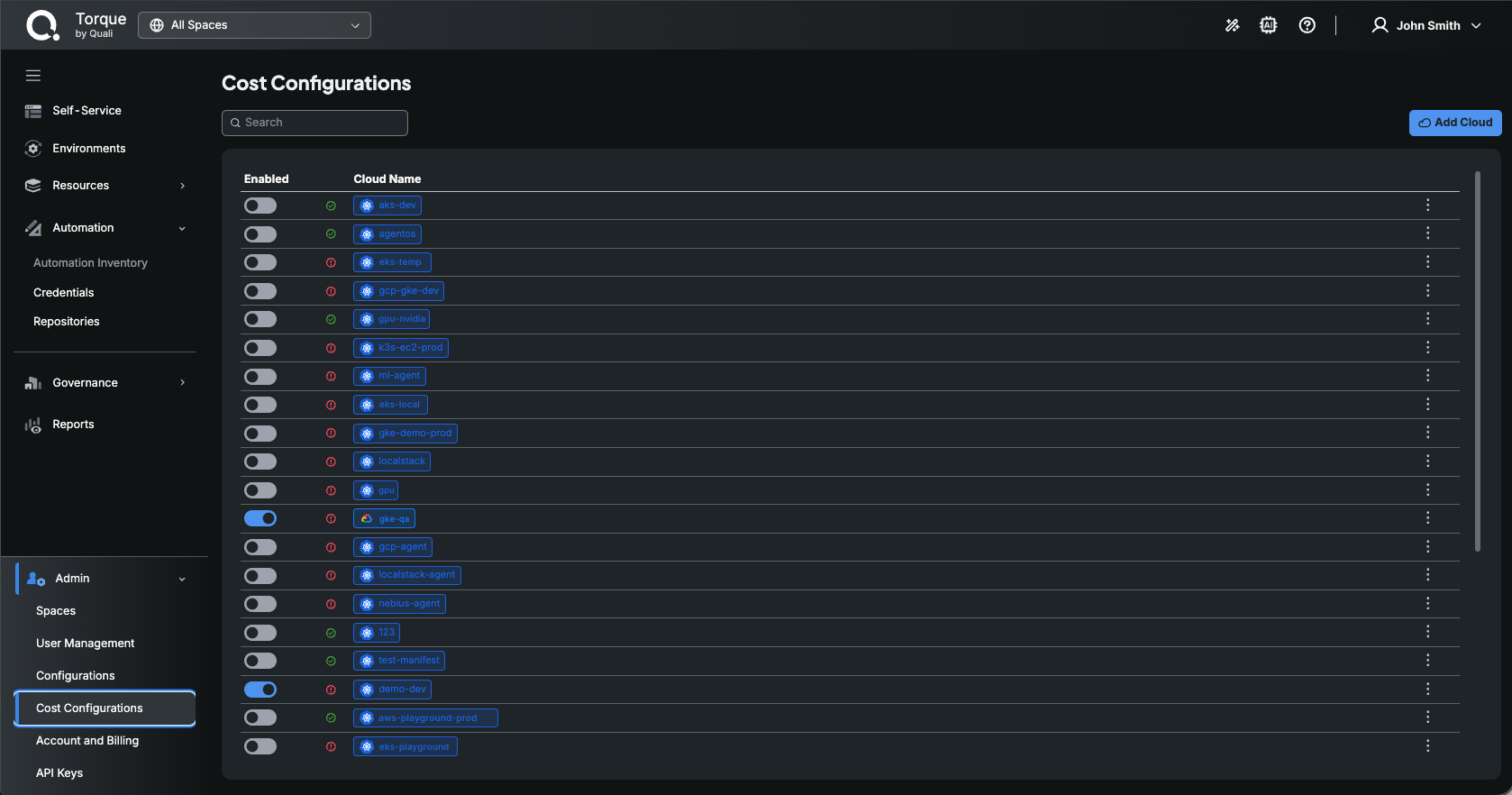
Torque collects cost data using cost collection targets, which are managed in the Cost Configurations page under the Admin section of the left sidebar. For AWS, Azure, and GCP clouds, you must first add a cloud account as a cost collection target, however for K8s, Torque automatically creates a cost collection target when an agent is installed on the cluster.
Follow the next steps to start collecting cost on your K8s cluster:
-
Install Kubecost:
- Torque collects cost data directly from the pods using a 3rd-party tool called Kubecost. To start collecting costs from your cluster, deploy Kubecost in your cluster.
- For deployment instructions, see: https://www.kubecost.com/install.html#show-instructions
- Make sure the kubecost default namespace is used (Namespace kubecost)
- Torque collects cost data directly from the pods using a 3rd-party tool called Kubecost. To start collecting costs from your cluster, deploy Kubecost in your cluster.
-
Validate the relevant cost collection target:
- Expand the Admin section at the bottom of the left sidebar and click Cost Configurations (requires the account admin role).
- Identify the relevant cost collection target. Its name will be the same name as the agent installed on the cluster.
- Click the cost collection target's ⋮ (3-dot) menu and select Validate to make sure it works (i.e. cost data can be collected).
- If validation fails, perform the procedure described in Troubleshooting.
-
Enable the relevant cost collection target:
- In the Cost Configurations page, click the desired cost collection target's Enabled toggle.
Troubleshooting
- Verify that Kubecost is deployed in the cluster.
- Navigate your browser to http://localhost:9090/. If you can see kubecost data, it means it's working. If you can't, see this guide for help.
- In Torque, try to re-enable the K8S cost collection target and validate that it works.
- If the error still exists, contact Torque support.