Configuring Cost for GCP
Prerequisites
- Ensure you have a GCP project with billing enabled.
- Create a BigQuery dataset and table to store detailed usage cost data.
- Create a service account with the necessary permissions to access the BigQuery dataset and table. The service account must have the following roles:
BigQuery Data ViewerBigQuery Job UserBilling Account Viewer
- Download the service account key in JSON format. This will be used in Torque.
Configuration Steps
Step 1: Set up BigQuery for Cost Data
- In your GCP Console, navigate to BigQuery.
- Create a dataset to store cost data:
- Click Create Dataset.
- Enter a Dataset ID (e.g.,
cost_data). - Set the Data location and other settings as needed.
- Click Create Dataset.
- Create a table for detailed usage cost data:
- Select the dataset you just created.
- Click Create Table.
- Set the Table ID (e.g.,
detailed_usage_cost). - Define the schema for the table based on your cost data requirements.
- Click Create Table.
Step 2: Create a Service Account
- In your GCP Console, navigate to IAM & Admin > Service Accounts.
- Click Create Service Account.
- Enter a Service Account Name (e.g.,
torque-cost-collector). - Assign the following roles to the service account:
BigQuery Data ViewerBigQuery Job UserBilling Account Viewer
- Click Done.
- Download the service account key in JSON format:
- Select the service account you just created.
- Click Keys > Add Key > Create New Key.
- Select JSON and click Create.
- Save the JSON file securely.
Step 3: Configure Torque
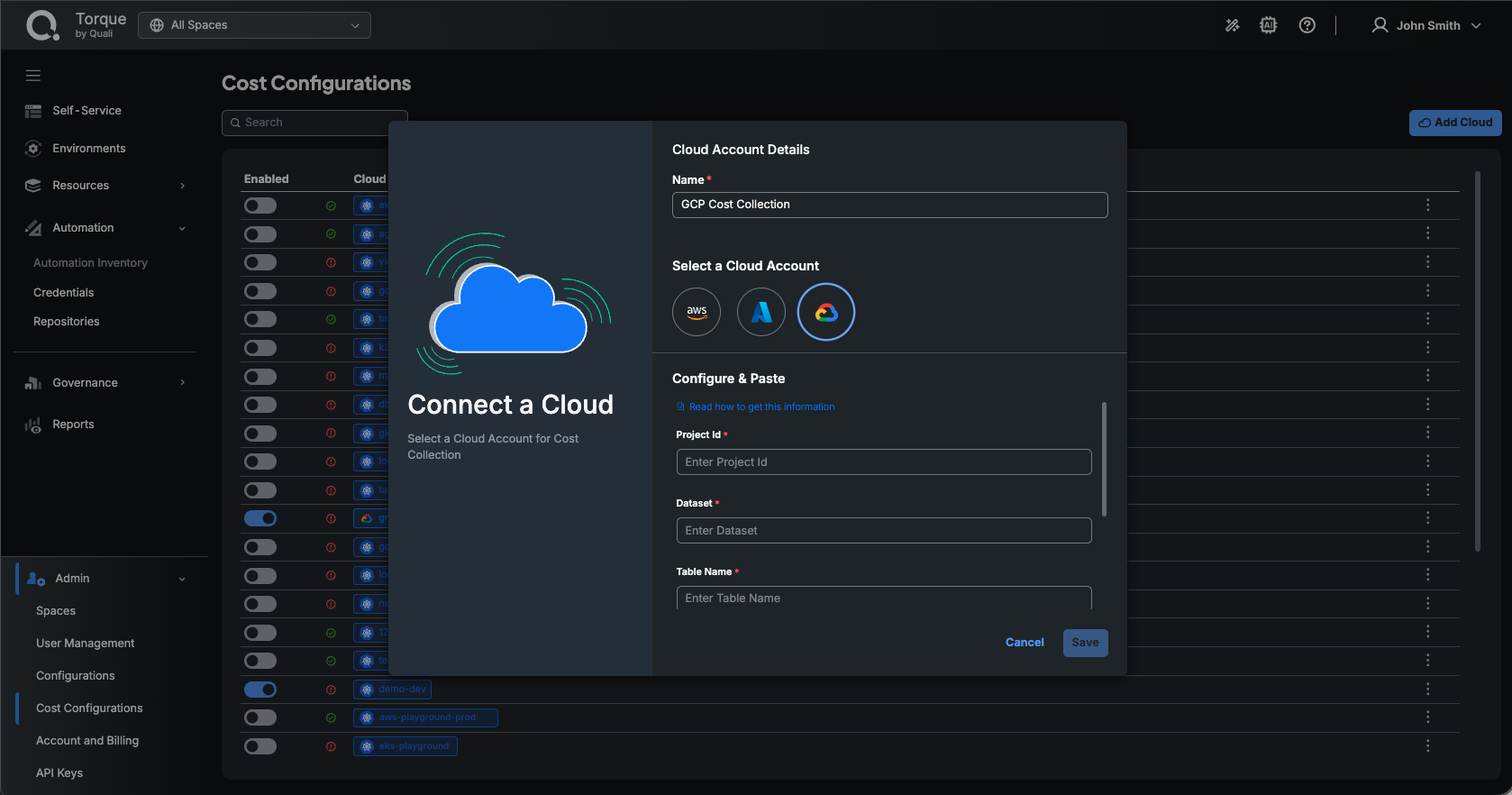
- In Torque, expand the Admin section at the bottom of the left sidebar and click Cost Configurations (requires the account admin role).
- Click Add Cloud.
- In the Connect a Cloud dialog, enter a Name for the cloud account and select GCP.
- Under Configure & Paste, specify the following details:
- Project Id: The GCP project ID where the BigQuery dataset resides.
- Dataset: The name of the BigQuery dataset (e.g.,
cost_data). - Table Name: The name of the BigQuery table with the detailed usage cost data (e.g.,
detailed_usage_cost). - Location: The location of the BigQuery dataset.
- Service Account Key Json: Paste the contents of the JSON key file downloaded in Step 2.
- Click Save.
- Click the cost collection target's ⋮ (3-dot) menu and select Validate to ensure the configuration works.
Step 4: Enable the Cost Collection Target
- Expand the Admin section at the bottom of the left sidebar and click Cost Configurations.
- Click the desired cost collection target's Enabled toggle.
Troubleshooting
What can be done if you don't see cost in Torque's cost dashboard?
- Ensure that cost data is being exported to the BigQuery table. Check the table in the GCP Console to verify data is present.
- Validate the service account permissions:
- Ensure the service account has access to the BigQuery dataset and table.
- Verify the service account has the
Billing Account Viewerrole.
- Test your credentials in Torque:
- Expand the Admin section of the left sidebar, click Cost Configurations, open the cloud account's ⋮ (3-dot) menu, and select Validate.
- If issues persist, review the configuration steps above and correct any errors.