Cloud Resources
Introduction
Torque Cloud Resources gives you visibility and governance over the resources that already exist in your cloud accounts. You connect a cloud account as a Provider with the Discovery capability, and Torque scans the account with read-only permissions, inventories every resource it finds, and lets you filter the inventory by type, location, or Infrastructure as Code (IaC) status.
Torque classifies discovered resources by their IaC status:
- Unmanaged: Resources that were created manually and are not governed by IaC.
- Codified: Resources that are managed by your existing IaC.
- Managed: Resources that are managed by Torque environments.
From the inventory you can add resources to a Collection and either Codify them into Terraform configuration and state files, or Curate them straight into a live Torque environment.
Key Features
- Cloud Resource Discovery: Automatically discovers and inventories the resources in each connected cloud account, providing a holistic view of your cloud estate.
- Resource Filtering: Filter resources by keyword, type, location, IaC status, tags, and attributes.
- IaC Integration: Generate Terraform files and state for unmanaged resources, simplifying the transition of manually provisioned resources into IaC.
- Codify and Curate: Select resources into a Collection, then download them as Terraform artifacts or curate them into a managed environment.
Adding a Cloud Account
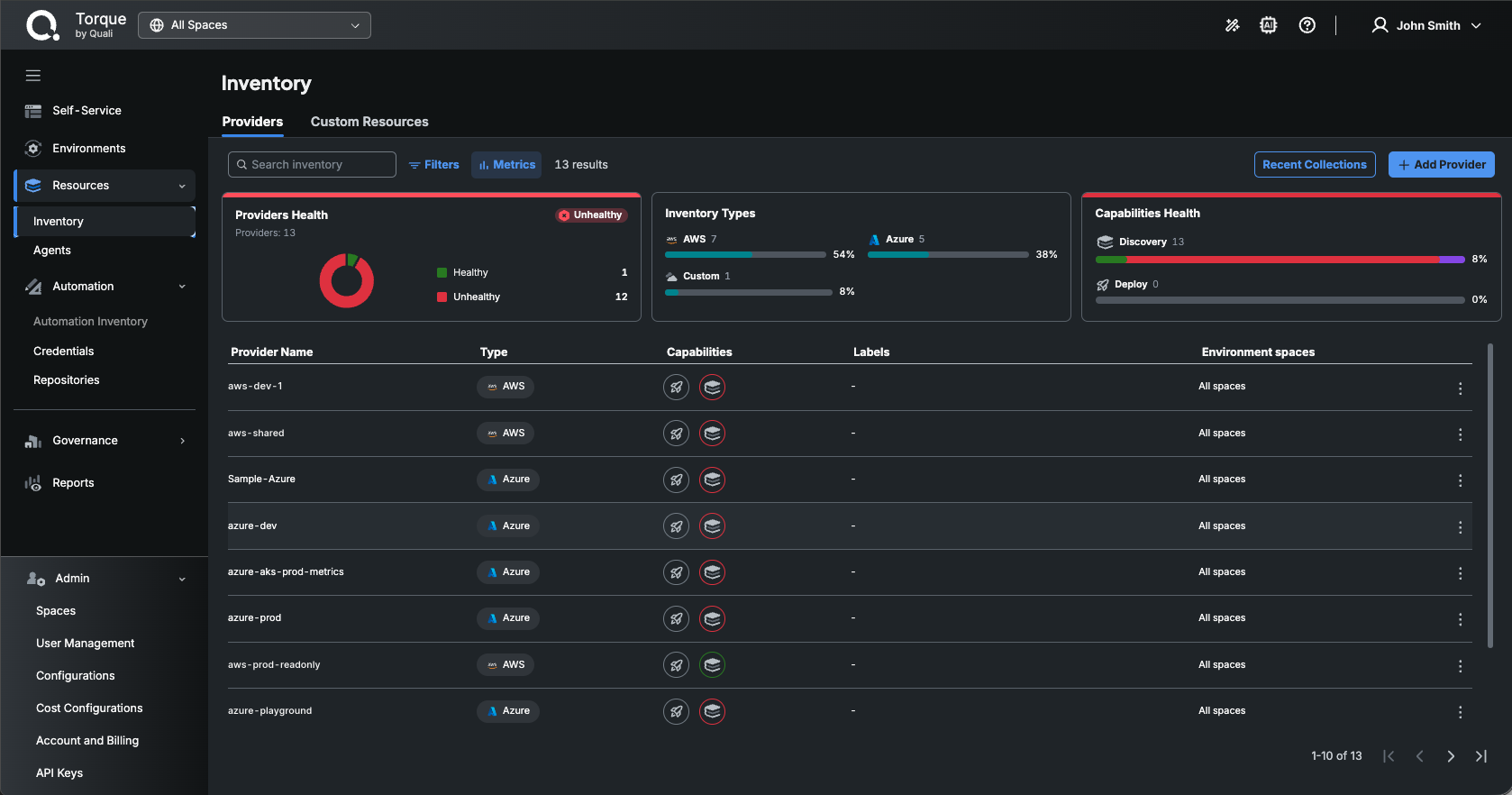
Cloud accounts are added as Providers in Resources → Inventory. Click Add Provider, choose the cloud tile, and enable the Discovery capability with read-only credentials. For the account-side prerequisites, see:
For the wizard itself, see Adding a Provider and Provider Capabilities.
Browsing Discovered Resources
Once a provider's Discovery capability is healthy, Torque scans the account and inventories its resources. To browse them:
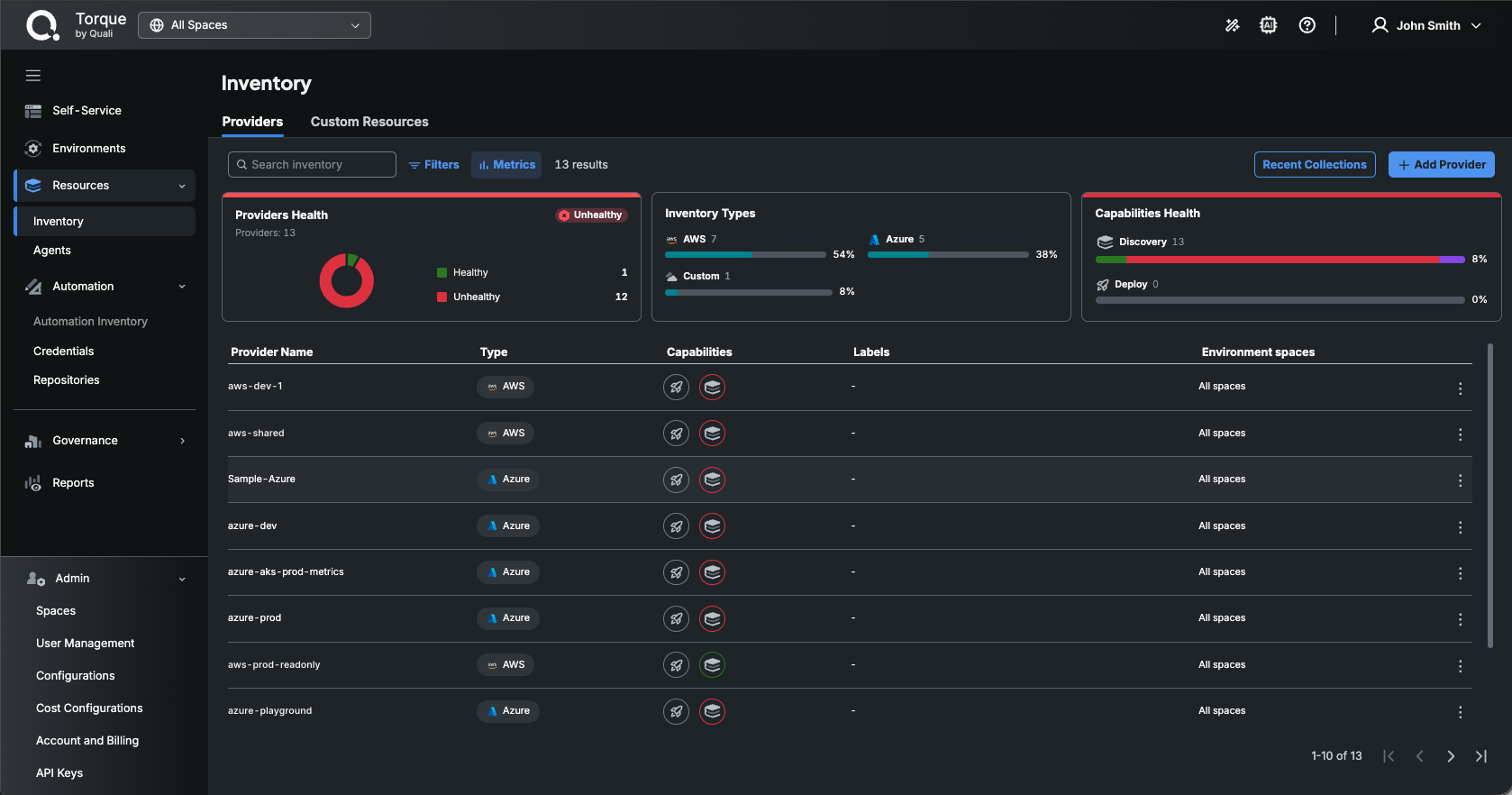
- Go to Resources → Inventory and open the Providers tab.
- Click the provider name, or open its ⋮ menu and select View Resources.
The resource list shows each resource's Resource Name, Type, IaC Status, Location, and Last Modified date. Use Search by keyword and Filters to narrow the list by type, location, IaC status, tags, or attributes.
Resource Details View
Clicking a resource opens its details drawer:
- Resource Status: The Resource Type, IaC Status, Location, Resource ID (for example, the AWS ARN), and Resource API Identifier.
- Cloud Account: The Provider, the Cloud Account the resource was discovered from, and when it was Last Synced.
- Add to Collection: Adds the resource to the current Collection (see below).
Codifying and Curating Resources
Resources are codified or curated through a Collection, a working set of resources from a single provider.
Building a Collection
- In the provider's resource list, tick the checkbox of each resource you want to include, or click Add to Collection in a resource's details drawer. Use the header checkbox to add every resource on the page.
- Click Collection at the top right to open the Current Collection panel and review the selected resources. You can remove individual resources or Clear the whole collection.
A Collection can only contain resources from the same provider. Resources with the IaC status Managed cannot be curated.
Codifying to Terraform
- In the Current Collection panel, click Codify.
- Review the Codify Summary. Torque creates a ZIP folder containing a Terraform file with state for the selected resources.
- Confirm. Codification may take up to a minute. You can close the dialog and follow the progress in the Recent Collections panel.
- When the codification completes, download the ZIP from Recent Collections (the Codifications list).
Curating as an Environment
Curating imports the resources into a managed Torque environment in one flow:
- In the Current Collection panel, click Curate as Environment.
- Fill in the Environment Details: the Environment Name, the Space Name to launch in, the Agent that will run the Terraform, and the Repository and Branch where the generated Terraform files are stored.
- Click Approve & Curate. Torque generates the Terraform files and state, uploads them to the repository, discovers and imports the new asset, generates a blueprint, and launches the environment. Follow the progress in the Recent Collections panel (the Curations list), then click Go to Environment.
Using the Downloaded IaC Artifacts
The Terraform configuration and state files generated by Torque can be used to manage your cloud resources through Infrastructure as Code. Possible actions include:
- Integration with Existing IaC Projects: Incorporate the generated Terraform files into existing IaC projects to maintain consistency in infrastructure management.
- Manage Resources via Terraform: Utilize the generated files to manage manually provisioned resources, simplifying their incorporation into existing IaC frameworks.
- Resource Deployment and Modification: With Terraform, apply, modify, or destroy cloud resources, granting precise control over curated infrastructure.
- Version Control: Store the Terraform files in a version control system such as Git, enabling collaborative management, change tracking, and versioning of infrastructure.
- Import into Torque: Follow Import Cloud Resources to turn codified resources into a managed environment through the API.
Best Practices for Using Torque Resources Inventory
To maximize the benefits of Torque Resources Inventory, consider the following best practices:
- Tag Resources Consistently: Ensure that all cloud resources are tagged appropriately for easier filtering and curation.
- Keep Discovery Healthy: Watch the Capabilities Health card and the Discovery icon of each provider so the inventory stays up to date.
- CI/CD Integration: Integrate downloaded Terraform files into CI/CD pipelines to automate infrastructure deployment and management processes.
- Periodic IaC Status Review: Regularly review the IaC status of resources to identify unmanaged entities and bring them under proper governance.
Frequently Asked Questions (FAQ)
What Cloud Providers Are Supported?
Cloud resources can be discovered from AWS, Azure, and GCP providers. The Providers inventory also discovers resources from vCenter and Kubernetes providers; see Provider Capabilities.
What Permissions Are Required for Torque Resources Inventory?
Discovery requires read-only permissions to the cloud account, for example the Reader role on an Azure subscription or a read-only IAM policy on AWS. See the AWS and Azure setup pages for details.
Can I Edit the Generated Terraform Files?
Yes, you can modify the generated Terraform files to suit your specific requirements before utilizing them in your IaC workflows.
Troubleshooting
Unable to Connect a Cloud Account
If the provider's Discovery capability shows as unhealthy, verify the following:
- The provided credentials have read-only permissions.
- The account identifiers (subscription ID, account number, view ARN) are accurate.
- There are no network or firewall settings preventing the agent from accessing the cloud account.
Terraform Generation Failed
If codification fails:
- Verify that all selected resources have the necessary metadata available.
- Ensure there are no permission issues preventing Torque from accessing resource details.
- Contact Torque support if the issue persists.
Support
For further assistance, please contact Torque support at support@quali.com or visit our support page.
Glossary
- IaC (Infrastructure as Code): The practice of managing and provisioning computing infrastructure through machine-readable configuration files.
- Terraform: An open-source IaC tool that allows users to define and provision infrastructure using a declarative configuration language.
- Reader Role: A built-in Azure role that provides read-only access to cloud resources.