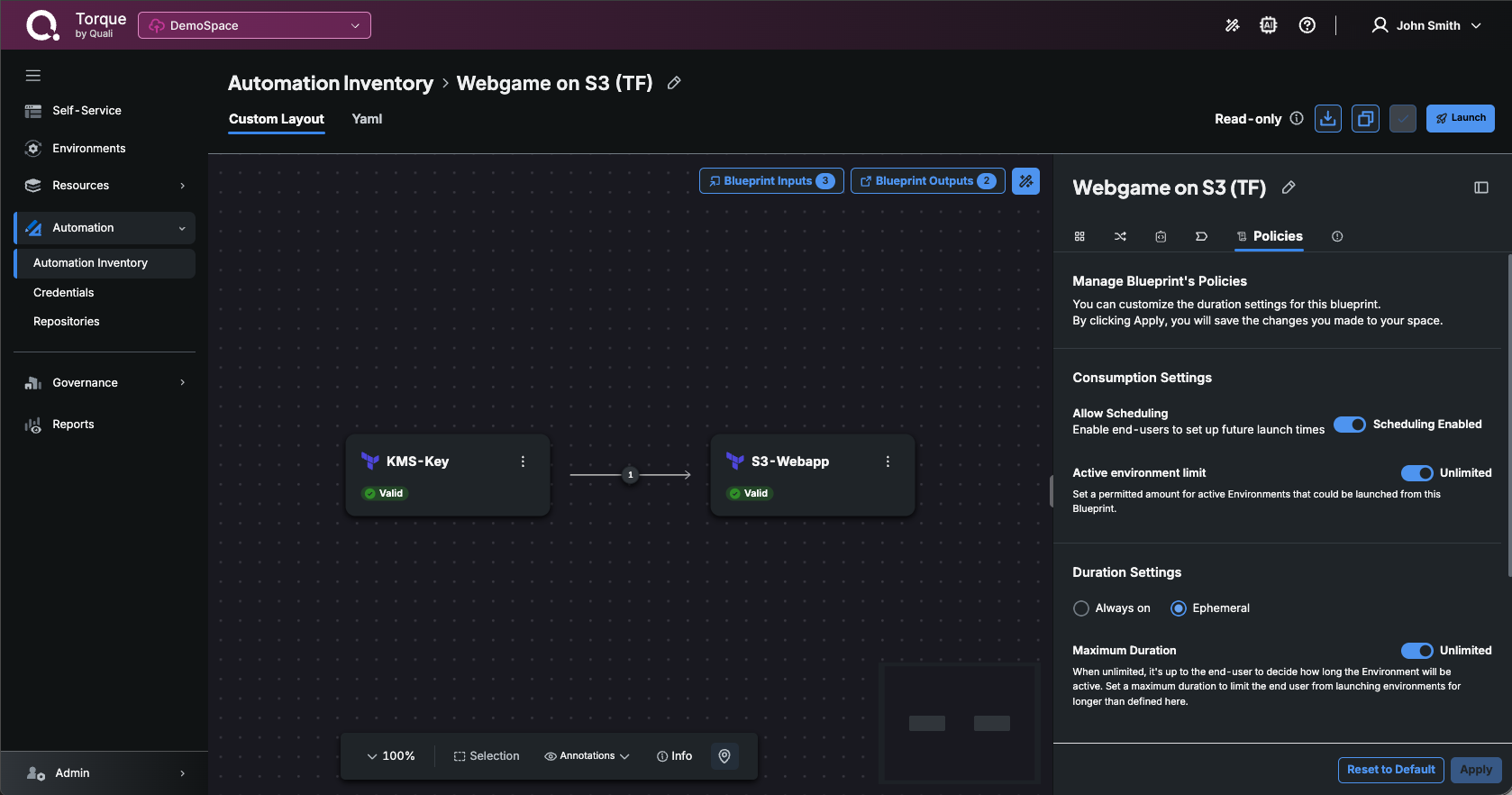
Blueprint Policies
As the blueprint designer, you can define the blueprint's default and max duration configurations or allow it to run indefinitely, to support scenarios that deploy an environment that must be always online or delivers a static cloud resource.
To set the blueprint's policy:
- In the Blueprints tab of the Automation Inventory, open the blueprint and select its Policies tab (Manage Blueprint's Policies).
- If the panel shows Default policies are locked, the blueprint inherits the space's default policies (set from the Default Policies button on the Blueprints tab). Click Unlock Default Policies to override them for this blueprint.
- Under Consumption Settings, set:
- Allow Scheduling: Enable end-users to set up future launch times for this blueprint.
- Active environment limit: Set a permitted amount for active Environments that could be launched from this Blueprint, or leave Unlimited.
- Under Duration Settings, set:
- Always on or Ephemeral: Choose whether environments launched from the Blueprint run indefinitely or for a limited duration. When choosing Ephemeral, provide the durations below.
- Maximum Duration: Set the max duration or select Unlimited to let the end user decide how long the environment will be active. Note that end-users will still have the option to end or extend the environment at any time, regardless of its runtime policy.
- Default Duration: Set the initial suggested duration (weeks, days, hours, minutes) that is displayed when launching a new environment.
- Default Extend Duration: Turn on Extendable and set the permitted extension when end-users extend the environment.
- Click Apply.